Every build you have on is one bar on one timeline. Click a bar and it opens into its stages — permitting, dirt work, concrete, material delivery, post set, siding. Each bar shows how far along the work actually is, not just how long it runs. Zoom from a single day out to a full year, and flip to Completed when you need a build you have already finished. It is the operating system for post-frame and barndominium builders, so the schedule already runs in your order: permits, dirt work, concrete, post set, steel.
Also called: gantt chart · construction schedule · job board · build calendar · project timeline
Every live build on one timeline, from a day out to a year
Try itEach job is one bar. Click it and it opens into its stages — permitting, concrete, material delivery, post set, siding — sitting where they actually fall on the calendar. Six zoom steps run Day, Week, Month, Quarter, 6 Mo and Year, so next week's crew moves and next spring's bookings are the same screen.
The whiteboard in the office still says framing starts Monday. The man who moved it to Thursday told two people, and neither of them writes on the whiteboard.
The office needs one answer — who is where next week — and a stack of week views makes somebody flip pages and add it up. One surface you pan means next Tuesday and next spring are the same glance, so a double booking shows up while it can still be moved. It stays smooth under a finger: a drag moves a picture, and nothing redraws until you have travelled about half a screen.
The bar shows how far along the job is, not just how long it is
Each job bar is cut into one segment per stage, positioned where that stage really sits and tinted by its status — planned, running, delayed, done. Zoom in far enough that a segment clears about 56 pixels and it labels itself: Material Delivery 3/4. A collapsed row already tells you where the job is.
You open four jobs one after another to answer one question — which of them is behind — and by the fourth you have forgotten what the first one said.
A foreman reads colour and position faster than words, so a collapsed row has to say where the job is without opening it. The names and colours come from the stage list the job started on — a company that calls it Post Set sees Post Set — and editing the stage template later changes the next job, never one already underway.
The percentage counts ticked boxes, not somebody's guess
The number on an expanded bar is checkpoint-weighted: boxes finished over boxes outstanding across the whole job. Anything marked not applicable leaves the denominator entirely — it is neither done nor owed. The fill on a bar is not somebody's guess — it counts the boxes the crew has ticked, and stage checkpoints covers where those ticks come from.
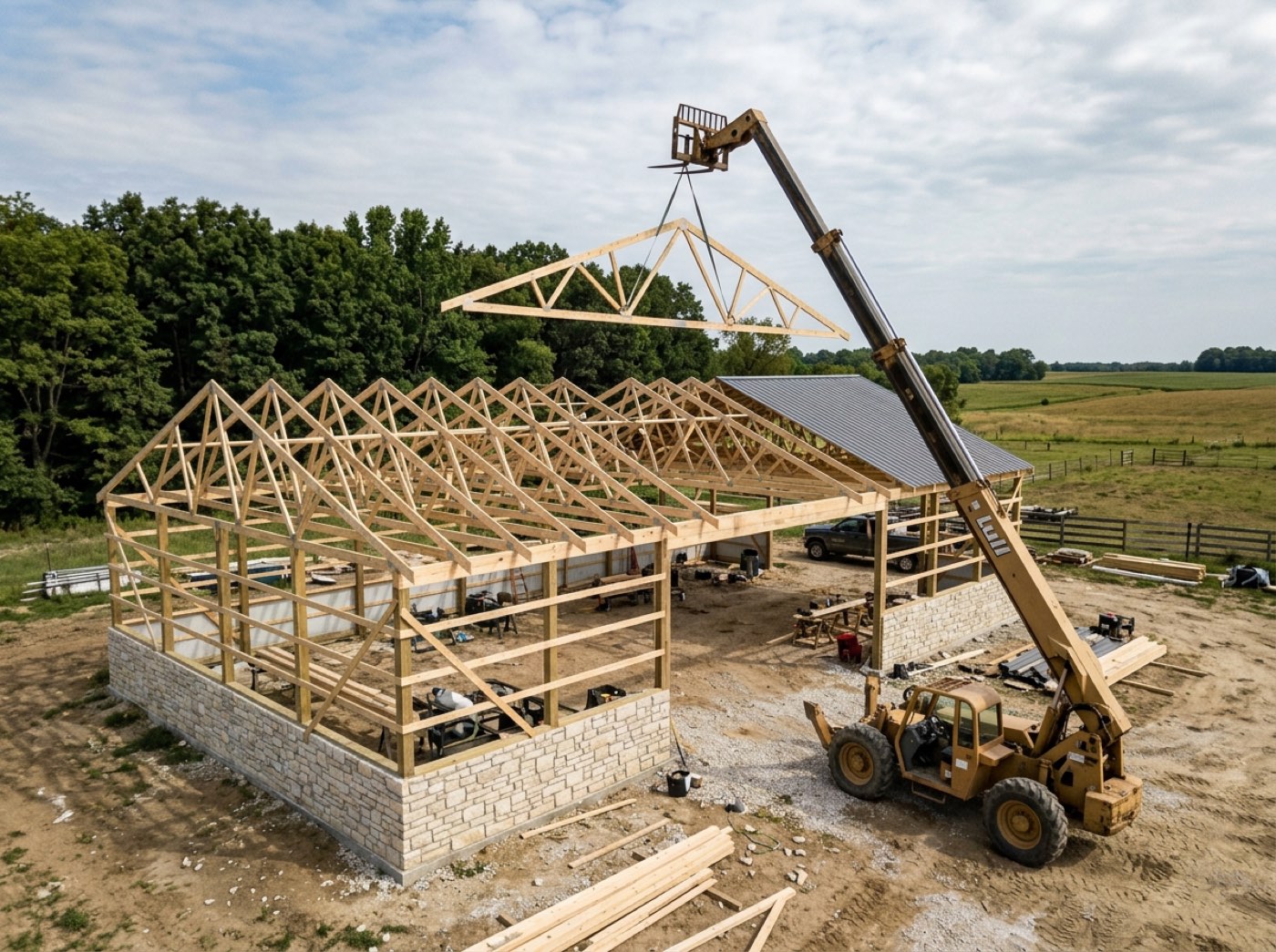
Framing has been in progress for nine days, the customer asks how it is going, and the honest answer is that nobody in the office knows whether that means day two or day eight.
Nobody trusts a percentage somebody typed, and a customer asking how it's going deserves better than a guess. Counting the ticked checkpoints means the bar moves during framing, not only at the end of it. A stage with no checkpoints falls back to stages done over stages total, so it never sits at zero forever.
Type a customer's name and everything else leaves the board
Once thirty builds are live, scrolling is not a way to find one. Search matches the job name, which carries the building and the customer together — "24×32 Detached Garage — Aaron Reinford" — and the board collapses to what matches. The crew chips narrow it further, down to one team's work — including the jobs where that team is the second crew, not the lead.
A customer rings about his garage, you know the job is on the board somewhere, and you scroll past it twice because you are looking for a name and the row says the building size first.
When a customer rings, whoever answers needs his job in seconds, not after scrolling past thirty bars. Search sits in the toolbar rather than the project column on purpose: a row added to that column would push every name out of line with its own bar, and the whole chart is read by that alignment.
A bar running through the weekend is visibly wrong
The days nobody works are shaded behind the bars. A five-day stage starting Thursday draws across seven calendar days and finishes the following Wednesday, because duration is entered in working days and the span is the consequence. Which days those are is set per company, per crew or per job, first one set wins.
Six chained stages each counted through a weekend, and the build has drifted more than a week before anyone has lifted a hammer.
A crew boss trusts a date he can see is possible. Shading the days nobody works makes a bar running through a weekend look wrong at a glance, instead of hiding the maths where nobody checks it. The band follows the company's week, so a Saturday crew's bars simply cross it — which reads correctly.
Vacations, shutdown weeks and idle days sit on the same timeline as the work
Try itMark a crew unavailable for a date range — vacation, holiday, maintenance or other — and it draws as its own hatched row across the timeline, with a calendar badge on that crew's chip. If work for the same crew overlaps that range, the row is stamped OVERLAP in red on the day it starts. Where a crew finishes one job and does not start the next until Thursday, a hatched band is drawn between them labelled 3d buffer, so idle days become countable instead of invisible.
Two crews found out they were booked on the same site the morning of, by phone, already in the trucks — and the three idle days each of the other two sat through that month appeared nowhere at all.
Crews take vacations and shops shut for a week, and a schedule that only shows work is quietly promising every crew is free every day. Drawing time off and idle gaps on the same timeline lets the office book around them instead of finding out from the truck. An overlap is flagged, not blocked — sometimes the vacation moves and sometimes the job does, and only you know which.
Click a stage and change it without leaving the board
One click on a stage bar opens start, end, status and crew. The duration recalculates as you move the dates. A start you pick on a Saturday rolls forward to the next day that crew works, and the days you entered are spent as working days from there. On a Material Delivery stage the crew list also carries your suppliers, because delivery is a yard's job, not a sub's.
Concrete slips two days, so the schedule is edited in a spreadsheet, and the crew leader is working from a screenshot of the version before that.
The office has to move one stage when the concrete sub can only come on the 14th — without dragging the whole build behind it. Quick-edit moves that one stage and reflows nothing, and the schedule notices afterwards if the result breaks its own order. The panel also warns when a stage now starts before the job does or ends after it.
A stage that drifted five months out says so
A pole barn once read 165 days because Permitting — a one-day stage, first in the plan — sat five months after the build finished. Every date correction after that preserved the nonsense length and threw the other end somewhere absurd. The project window now names the stage that broke the running order, says that is why the job reads so long, and offers one button that puts the run back in plan order, keeping each stage's length and the job's start date. If the order is deliberate, That's intentional puts the warning away for that job. A long gap on its own — a permit pulled two months early — is never flagged. Out-of-sequence detection is the whole rule.
"Every time I change the start date it goes out till February, and every time I get the end date back to September it changes the start date back to May. I'm sure I'm doing something wrong, I just don't know what."
A builder fighting his own dates assumes the mistake is his; naming the stage that broke the order ends the guessing in one look. The repair is offered, never forced, and "that's intentional" is remembered for the job — the schedule does not get to argue with the man running it.
The only thing on the board that moves is trouble
A delayed stage carries a pulsing red caution triangle — the one animated mark on the entire chart. Healthy work in progress gets a static play arrow. A finished stage that ran long carries its variance on the bar as +3d, and the expanded job bar counts its delayed stages as a flag. Marking one delayed opens the form that asks why.
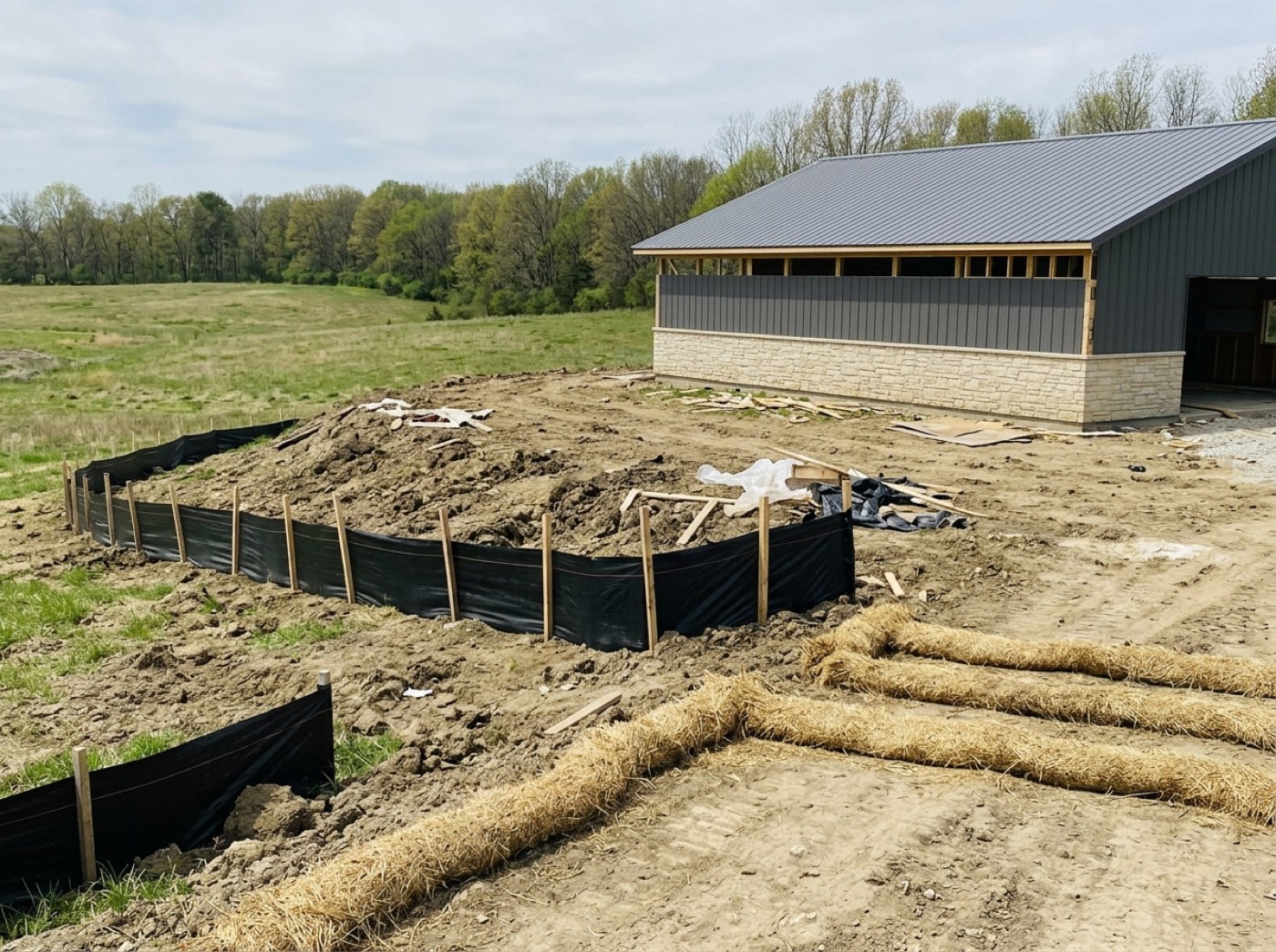
The siding crew has been stopped since Tuesday waiting on trim, and the office finds out on Friday when the customer asks why nothing has changed.
An owner scanning the board should land on trouble, not on the busiest job. Motion is kept for problems only — healthy work gets a still arrow — so the pulsing triangle never turns into wallpaper. Variance is measured when a stage closes, actual days against planned, so the number on the bar is a measurement, not an opinion.
Double-click and the whole job opens, every section a card
One click quick-edits a stage; double-click opens the project window. Every section — weather, assignees, plans, schedule, billing, budget and margin, phases, photos, project chat, tasks, labour, notes — is a card with its key facts on the outside. Closed, the Hostetler Equipment Shed still reads 3 of 6 done · Now: Siding / Roofing · 1 behind and $10,560.00 outstanding. Open tasks sort above finished ones, and every row on the board carries a daily-log button for the site diary. The project window is the whole screen.
To answer "is the Hostetler job on track?" somebody opens six panels one after another, and by the sixth has forgotten what the first one said.
The office opens a job to answer one question, and the closed cards answer most of them without another click. Red for late, amber for waiting on someone and green for done keep the eye on what needs a decision. The board stays for where and when; everything else is one gesture away.
Nothing lands on this board by accident
Try itA signed estimate does not become a bar on its own. It waits in a Ready to Start strip above the chart until somebody presses the start-project button, which is what creates the stages, the checkpoints and the dates. A build that is already three weeks in when you sign up gets adopted at whatever state it is actually at.
Two contracts came back the same week; one starts in March and one starts whenever the permit clears, and both are drawn on next Monday.
The office needs to trust that every bar is a build somebody decided to start. A board that filled itself from contract signatures would fill with jobs that have no real start date yet. One deliberate press creates the stages, checkpoints and dates, so the schedule only shows work that is really coming.
Your subs see their own jobs and nobody else's
Crew leaders and workers who sign in see the same board, but on theirs the crew chips are not rendered at all and the project list is filtered to their crew in the data layer before anything is drawn, so there is no control to undo and nothing behind it. A crew put on a job as the second crew sees that job too, the same as the lead crew. A crew lead can book time off for his own team and no other. How much work you have on, and who else is doing it, stays yours.
A sub sees you have eleven jobs on and four crews running, and the next quote he gives you is priced for a builder who cannot say no.
A sub works better when he sees his own jobs clearly — and you are better off when he cannot count yours. The list is filtered before anything is drawn, time-off rows included, so a slip in the screen still shows nothing. The rule and where it is enforced live in roles and permissions; how crews' own links are sent and revoked is on the crew field portal.
Finished builds move to Completed, not to the bin
Try itFlip the switch from Active to Completed and the board shows the builds you have finished — the counts on the switch, the most recently finished first, every phase marked done. A job counts as completed once its last checkpoint is ticked in the project window. Archive still takes a build off the board into a panel with Restore beside it, and Delete lands it in a Deleted panel that also restores — both make you type the word before the button fires.
The Yoder machine shed finished in August, and when Mr. Yoder calls about a door in March nobody can find the job without scrolling back through months of bars.
An owner wants the live board clean but the past builds close — for the warranty call, the repeat customer, the photos. Completed keeps them one click away with their phases done, without anyone inventing crew logs to make them look finished, so the crew numbers stay honest. Archive and Delete keep the typed-word gate because a job carries a contract, invoices and logged hours.
The customer never sees this screen
The board carries every job you have on, the crews behind them and where the gaps are. None of that is customer business. This board is for your side of the desk; the customer never sees it — what reaches them is on the live project dashboard, which shows their build and its stages and nothing else.
A customer sees you have nine other jobs on and immediately starts wondering which one his crew is really at today.
Customers relax when they see their own build moving and get nervous when they see your whole book. So they get a separate page that shows only their job, fed from the same stages as this board — their progress cannot drift from yours, and there is no toggle one slip away from showing them everything.
Two crews on one job, and each one sees it
Try itPut the Concrete Crew on the Hostetler shed alongside Crew A and the job shows under both crews' chips and on both crews' boards. Crew A stays the lead — its lane, its payout — and the second crew is its own assignment, added from the project header with + Add crew. For an in-house crew you tick who's going and watch each man go from waiting to accepted: Concrete Crew 1 of 2 accepted. A subcontractor crew's lead signs the acceptance agreement instead.
The concrete crew is booked on a job filed under the framing crew, so their filter shows nothing and they hear about Thursday's pour on Wednesday night.
Concrete and framing crews overlap on real post-frame jobs, and a schedule that knows only one crew per job hides the other until he shows up. Filtering by any crew on the job means the concrete boss sees every pour he is booked for, and the office sees who still hasn't accepted — fewer no-shows and fewer "nobody told me".
- 1Open the schedule and every live job is already drawn.
- 2Click a job to open it into its stages.
- 3Click a stage bar to change its dates, status or crew without leaving the board.
- 4Zoom Day, Week, Month, Quarter, 6 Mo or Year to see next week or next spring.
- 5Flip Active · Completed to see the builds you have finished, newest first.
- 6Double-click a job to open the project window — every section a card with its key facts on the outside.
- 7Pan with a finger — the board was tuned for a phone in a truck cab.
A builder running several crews across jobs that overlap by weeks kept the schedule on a whiteboard and in a spreadsheet, and neither of them knew which crew was standing on which site on a given day. Double bookings were found the morning of, by phone, with two crews already in trucks. The board is one continuous surface you pan and zoom, and it was tuned hard for a phone in a truck cab: early versions lurched a week sideways when a finger slowed, and a finger that rested before lifting sent the board drifting on its own.
- No single view of every active build and its stages
- Crew double-booking invisible until the day of
- Schedule changes never reaching the people who need them
- Finished builds lost off the bottom of a live board
- A second crew on a job invisible under the first crew's name
Find a job by name
A search box above the schedule. The job name carries the customer and the building together — "24×32 Detached Garage — Aaron Reinford" — which is how a builder actually looks a job up. Names and bars filter together, so the two never fall out of step.
Crew filter, and what a sub can see
A strip of crew chips above the chart. Tap one and the board shows only that crew's work. A crew currently on time off carries a badge on its chip. On a crew leader's or worker's own link the chips are gone and the board only ever holds their crew's jobs.
At-a-glance progress bar
An open job bar draws one segment per stage, each sitting where that stage really falls and shaded by its status. It carries counts too: stages done, stages delayed, checkpoints finished, and the stage running right now. The wider the bar on screen, the more of that it prints.
Idle days between a crew's jobs
Where a crew finishes one job and does not start the next for three days, the board draws a hatched band across the gap and prints 3d buffer inside it. Idle crew days are money — two empty days is two days of wages against no revenue.
Crew time off and holiday blocks
Time off is a block on the board, in the same rows as the work. Give it a crew, a label, a start and an end, and a type: vacation, holiday, maintenance or other. A crew with a block running now or coming up carries a badge on its chip.
Archive, delete and restore jobs
Archive is the everyday action. The build leaves the live board and sits in a collapsible Archived panel you can pull it back from. Delete takes a typed confirmation, and it still lands in a Deleted panel with a restore beside it.
Stage quick edit
A small panel on the bar itself holding the start, the end and the length, four status buttons, and who it is assigned to. It warns when the dates fall outside the job's own span. Full Details opens the whole stage.