It needs a fully signed contract and a crew before it will run. Pick the start date, the crew, the address, the building type and the template, then adjust the stages and checkpoints while you still can. Press it and the job appears on the schedule, enters the board at Kickoff, and tells the team and the customer. Your own crew is put on the job and each man accepts it on his phone; a subcontractor crew's lead gets the agreement to sign.
Also called: turn a signed estimate into a job · kick off the build · create the project
One action turns a signed estimate into a running job
Start Project creates the job, copies the building type's stages and checkpoints onto it, puts it on the schedule, enters it on the project board at Kickoff, and tells both the team and the customer that the build is underway. The alternative is setting up every job by hand and typing the customer's details a second time into a second system.
A signed deal sits for a week while someone rebuilds the job by hand, and the customer starts wondering whether they picked the right builder.
The office does the set-up once, in one place, instead of retyping the customer into a second system. The customer hears the build is real the same day they sign — which is when their excitement, and their patience, is highest.
It won't start a job on a deal that isn't signed
The gate requires a fully signed contract and a crew before it will run. That is deliberate: the moment a job exists, clocks start, the customer begins receiving progress emails, and the board starts reporting it as work in hand. A job started on a deal that has not closed is not a small thing to unwind.
A job gets started on a verbal yes, the crew is booked, progress emails go out — and then the customer backs out before signing.
The owner never has to unwind a job that went live on a handshake: no crew sent, no customer emails started, no work in hand counted that isn't real. A clean gate keeps the board honest about what is actually sold.
Adjust the stages and checkpoints while you still can
The Start Project screen shows the stage list with its lengths and lets you rename, add or remove checkpoints for this job before the job is created. Afterwards the list is frozen. Doing it here is one pass through one screen; doing it later means opening every stage on a live job — and for checkpoint names it is not possible at all.
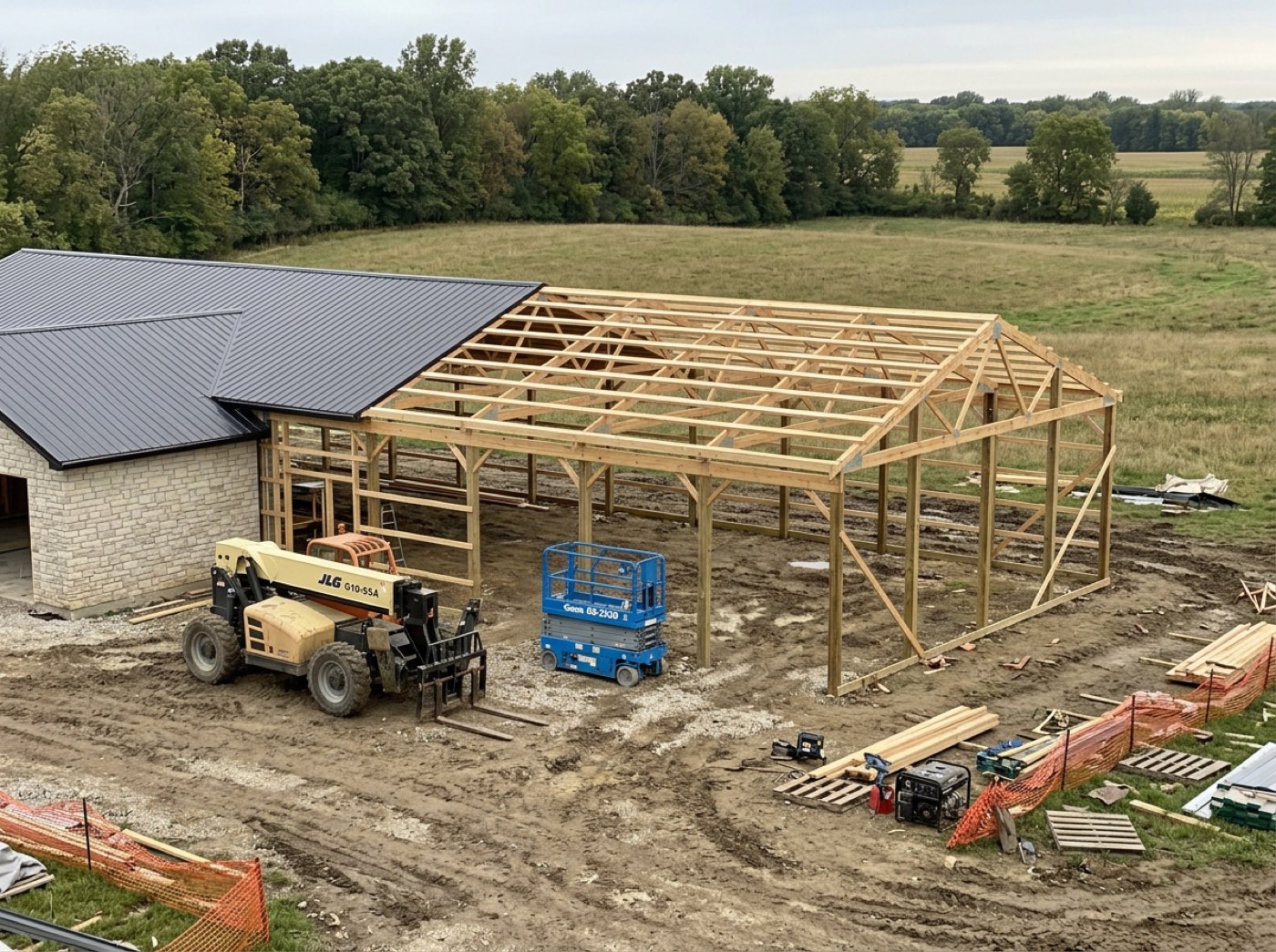
A barndo with no porch starts with a porch checkpoint on it, and the crew either ticks it to make the stage close or leaves the stage open forever.
The project manager gets one pass, on one screen, to make the checklist fit this building before the crew ever sees it. Getting it right up front means no live job carries a checkpoint that doesn't apply.
Press it twice and you get one job, not two
A retry after a dropped connection repairs whatever is missing instead of duplicating it. Stages, then checkpoints, then the lock go on as a single operation — a half-created job would end up frozen around a partial checklist that, by definition, nobody could then fix.
The signal drops mid-start, someone presses again, and now there are two jobs, two schedules and two sets of customer emails.
The office can press it again after a dropped connection without fear of a duplicate job, because a retry fixes what is missing. No cleanup calls, no double-booked crew.
Contracts signed but not started sit in a banner on the schedule
Every fully signed contract with no job on the board yet is listed above the schedule, with one click through to the screen that starts it. Deals get signed and then wait quietly while the customer wonders when you break ground; this is what makes that impossible to miss.
A contract gets signed on a Friday, everyone assumes someone else set the job up, and the customer calls three weeks later asking when you break ground.
The owner sees every signed contract that hasn't become a job, right above the schedule, so no customer waits in silence after signing. Nobody remembering to start a job stops being a way to lose goodwill.
Your crew gets the job on their phones and accepts it, one man at a time
Try itStarting the job puts your own crew on it and texts and emails each man his field link — with a phone alert if he uses the app — to tap Accept job. You are told each time someone accepts, and the job's header shows how far along it is, like "1 of 2 accepted", with a Remind beside anyone still waiting. Trim who's going later from the header. A subcontractor crew is different: its lead gets the agreement by email and signs it. Starting the job also opens the job's own chat with your crew already in it.
The crew lead was told, half his crew wasn't, and the job starts a man short because nobody checked who had actually heard.
Each man says yes himself, so the office knows who is actually coming instead of assuming the lead passed it on. The crew feels asked rather than told, and the owner stops finding out on the morning that someone never knew about the job.
- 1Open the signed estimate and press Start Project.
- 2Pick the start date, crew, address and building type.
- 3Adjust the stages and checkpoints for this job — this is your last chance.
- 4Press start: the job appears on the schedule with its checklist locked.
- 5The team is notified and the customer gets "your build is underway".
- 6Your own crew gets the job on their phones to accept; a subcontractor's lead gets the agreement to sign.
- 7Press it twice and you get one job, not two.
Starting a build is the moment the plan becomes a commitment: the checklist locks, the estimate becomes the baseline, the customer's page goes live. Doing that halfway would leave a job frozen around a partial checklist that, by definition, nobody can then fix — so it either all happens or none of it does. The screen also records which template the job came from, which used to be used to fill the form and then thrown away, so nothing afterwards could say where a plan originated.
- The gap between a signed deal and a running job
- Partially-created projects that can never be fixed
- No record of which template a job came from
Site address filled in from what the customer already typed
A small fill on the Start Project form. The customer typed their property address right after approving. The form reads it back instead of asking you to type it again.
Estimates ready to start
A read-only strip of cards above the schedule. Each one carries the job name, the customer, the date it was signed and its accounting status. Clicking it takes you to the screen that starts the build. It changes nothing on its own, and you can dismiss it for the session.