Open a job and get the whole job: every crew on it and who has accepted, the stage it is on and what is behind, what it will cost against what it is worth, the bills, the photos, the job's own chat, and a button that shows you exactly what the customer is seeing right now. Each section is a card you open and close; closed, it still shows its key facts as coloured tags. This is the post-frame & barndominium operating system at the size of one job — the whole build in one window, instead of five tools taped together.
Also called: project modal · job details · open a project · everything about this build
The whole job, on one screen
The building, every crew on it, the customer and the site address under the name; Client Portal, Link Estimate, Archive, Delete and a reminder in a row above it that never moves. Below that, every part of the job. You stop being the thing that joins them together.
Answering "how is the Miller build going?" takes four tabs and ten minutes, and by then you have forgotten why you asked.
The owner opening a job mid-phone-call needs the answer, not a hunt. Every card reads live off the same job record rather than a nightly roll-up, so you can be right while the customer is still on the line.
Every section is a card, and the closed card still tells you its news
Weather, assignees, plans, schedule, billing, budget, phases, photos, chat, tasks, labour, notes — each one a card you open and close by its header, with its key facts on the outside as coloured tags. On the Hostetler shed that reads 2 days stopped on Weather history, Concrete over budget on Budget & margin, 1 behind on Project phases and 2 unread on Project chat. Red is wrong or late, amber is waiting on someone, green is done. Open all and Close all sit at the top, and the window remembers which cards you keep open.
The one bad number is buried in the fourth panel down, so nobody opens it until the job is already in trouble.
The office can't open fifteen panels on every job before lunch. The tags put the problem on the outside — red, amber, green — so the one job that needs a call gets it today, not at the next site visit.
Every crew on the job, and who has accepted, in the header
Try itThe line under the job name says which crews are on it — Crew A all 4 accepted, the Concrete Crew 1 of 2 accepted — with + Add crew beside them. Click a crew to tick who's going: each man gets a text and an email with his field link, plus a phone alert if he uses the app, and taps Accept job. You're told each time someone accepts, and a Remind button sits beside anyone still waiting. A subcontractor crew's lead gets the job by email and signs the acceptance agreement instead.
A second crew on the job lived in one person's head, and the crew found out it was booked when the concrete truck called.
The project manager stops ringing round on Sunday night to find out who's coming Monday. Each man says yes on his own phone, so the job starts with a crew that confirmed — and the schedule's crew filter finds the job under every crew on it.
Who hears about this job
Try itAssign the people who should be told what happens here — the owner on the two jobs that worry him, the project manager on all of them, the crew lead on his own. Anyone assigned receives all project notifications, and it is per project rather than per role, so nobody is copied on eleven builds to stay across two. Closed, the Assignees card lists the names — or says Nobody assigned yet.
The project manager hears the slab got poured because he happened to be copied in, and the owner finds out about the one job he actually cared about a week late.
The owner hears about the jobs he chose, the project manager about all of them, and nobody drowns. Being named on a job outranks the company-wide settings, so the people you put here hear about it — and taking someone off stops it just as cleanly.
Where it is, and what's left in it
The Project phases card says 3 of 6 done, Now: Siding / Roofing and 1 behind before you open it. Done is counted from ticked checkpoints, not from a status somebody set, and behind means a phase whose planned end has passed with work still open — here, Post Set. Open it for every phase with its checkpoints and status.
"In framing" covers day one and day nine, so the only way to know how much is left is to ring the crew lead and interrupt him.
The project manager learns how much is left without interrupting the crew lead. Counting from ticked boxes means the card can't say nearly done while four items are still open, so the next stage gets planned on facts.
Which days this job actually works
Inside the Schedule card, under the start, end and length, sits the working week for this job. Stage durations are counted in working days, and this job can differ from the crew's usual week. Closed, the Schedule card shows the span, the length and where today sits — Jul 27 → Sep 6, 41 days, Day 31 of 41.
A four-day stage promised on a Thursday lands next Tuesday in reality, and the customer only ever heard the first date.
The customer was promised a date and the crew knows which days it actually works. Setting the week per job turns the dates into arithmetic instead of optimism, so a Saturday pour or a shutdown week is carried by the schedule, not by somebody's memory.
This job's weather, not the yard's
The Weather card forecasts the job's own site. Closed, it leads with today's and tomorrow's warnings — Today: Gusts to 34 mph 1 PM–5 PM, Tomorrow: About 0.6 in of rain after 2 PM — and otherwise shows conditions, high and low, wind and sunrise. The full forecast is inside. How the trade calls work.
The office reads the forecast for the yard, the job forty miles away gets the storm, and the steel goes up anyway.
The office can see which crew is about to lose an afternoon without phoning the site. Two jobs a county apart routinely get two different days, so the forecast that matters is the one for this address.
What the job is worth, what it will cost, and the margin it's heading for
Try itThe Budget & margin card puts the contract side across the top — $86,400 signed, +$3,200 of approved changes, $89,600 now, $53,760 invoiced — then cost by phase as budget, committed, actual and projected. A sent purchase order counts as committed; labour counts at what each man is actually paid. On the Hostetler shed Concrete is $1,180 over, and the projected margin is $11,960 — 13.3%. Budgets are set per phase in four buckets: materials, labour, subs and other. Beside it, Selections & allowances tracks what the customer has picked against each allowance, and a Construction loan card follows the lender's draws on a financed job. Both money cards show to admins, project managers and sales managers.
Concrete runs $1,180 over, nobody adds it up until the last invoice, and the margin you thought you had has gone.
The owner sees a job going thin while there are still stages left to buy for. Projected never drops below what is already promised to a supplier, so the margin on the card is one you can still act on — not a post-mortem at the final invoice.
The crew payout, on the job
Inside the Labor & costs card — whose closed tags show labour against the estimate, what's been spent and the margin so far — sits the payout: pool, day rates earned, fuel and equipment, the surplus shared, then every worker with his hours, his days and what he is owed. Hours come from what the crew logged on their field links; the surplus is split by share of hours. Full breakdown on the payout page.
The crew's pay gets worked out in a spreadsheet on Sunday night, which is also the first moment you learn what the job's labour actually cost.
The crew wants Friday's number before Friday. Built from approved field hours rather than typed up at the end, it moves while the job is running — and it sits with the hours and costs it came from, so a big payout is one tap from the days that explain it.
What was ordered, and what actually arrived
Orders are raised and received on the job's order sheet, reached from the deal card's Materials section: ordered, received, short, damaged. What reaches this window is the money — a sent order counts as committed in Budget & margin, a delivered one as actual. The delivery missing two bundles of purlins is a schedule problem, and it should surface before the crew is standing on the deck.
The load is two bundles short, nobody notices until the crew is standing on the deck, and a full day of framing is gone.
The crew lead and the office see the same shortfall the day the truck comes, not the morning framing starts. Short and damaged are kept apart because one is the yard's picking error and the other is a claim — and the gap is exactly what you take back to the supplier.
The money owed on this job
The Billing card holds this job's invoices and change orders on two tabs. Closed, it still says what matters — $10,560.00 outstanding, 3 invoices, 3 change orders, 1 awaiting customer — so should I be chasing this one is answered without opening it. Invoices are raised from the payment schedule; change orders sit on the second tab.
You chase a customer who paid three weeks ago and let the one who did not slide another month.
The office chases the customer who owes, not the one who paid three weeks ago. The card is scoped to this build, so a repeat client with four jobs on the go doesn't turn one unpaid draw into a search.
The job has its own chat, with everyone on it
Try itThe Project chat card shows the latest lines and takes a reply — Levi at 11:42: Last two posts set, starting girts after lunch. It is the same conversation the crew sees in their field app's Job chats tab and the office sees under Projects in chat. Who's in it follows who's on the job: the crews going and the assignees. Take a crew off the job and it leaves the chat; the history stays. Closed, the card says 2 unread and the last line.
What the crew was told lives in four people's text threads, and the one who knows has the day off.
The crew lead stops texting the project manager's personal phone, and whoever picks the job up next can read what was said. One conversation per job means the decision about the door on the east wall is written down where the job is.
The photos, in build order
The Photos card is the job's own gallery — every shot filed against the stage and checkpoint it belongs to — and the closed card says how far the record has got: 148 photos, 14 of 23 checkpoints photographed. This is the office record, not the customer's gallery.
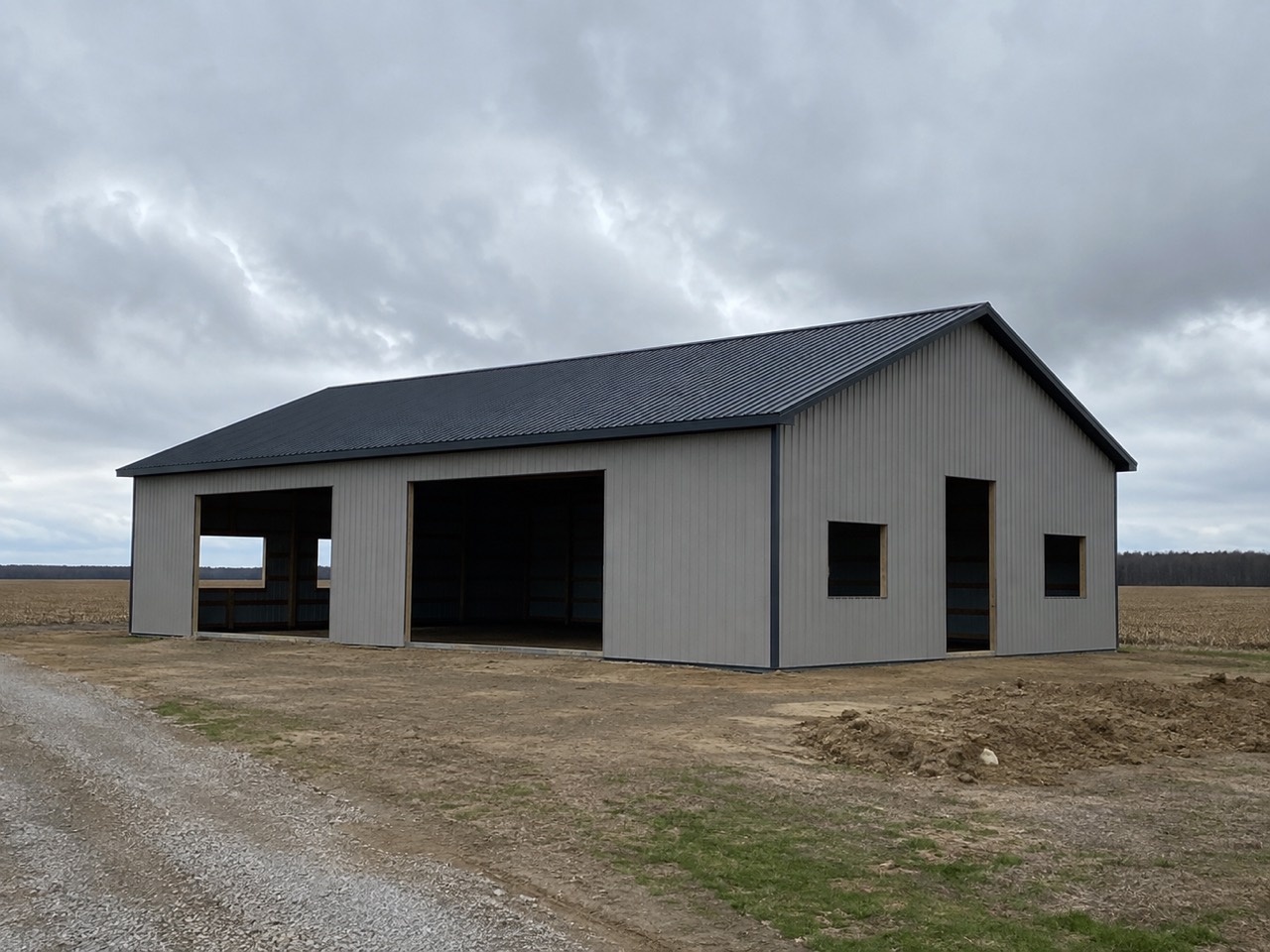
Eleven months on, the inspection genuinely happened and all that survives is a memory and a crew that has moved three counties away.
The project manager sees which checkpoints still have no photo without asking the crew. Shots file themselves against the job and checkpoint they were taken on, so the build record assembles itself while the crew works — and it is still there eleven months later.
A subcontractor crew signs for the work
Your own crews accept man by man on their phones. A subcontractor crew is different: its lead gets the job by email and signs the acceptance agreement — the phases his crew owns, the notes from the project manager and the terms, with a typed name and a drawn signature, dated. On a subcontracted job the signed copy opens from the project window.
A lead walks off halfway through insisting he never took on the last two phases, and there is nothing on paper that says otherwise.
The sub's lead and the office both know exactly what was agreed before anyone digs a hole. The wording is locked onto the signature when it is signed, and swapping crews ends one acceptance and opens a new one — so there is only ever one live agreement per job.
…and so did the customer
The executed agreement lives on the job in the Contract card — its status (Awaiting Customer, Customer Signed, Fully Executed) on the card itself, the specification, the clause-by-clause initials and both signatures inside. When the customer has signed and you haven't, the card carries a Counter-Sign button. Not an attachment in a thread from four months ago.


The argument is about clause six and the signed copy is buried in an email thread from four months ago, on a phone you no longer have.
When the argument is about clause six, the owner opens the signed copy on the job in two taps. The job finds its agreement even when the contract was signed before the job existed, so nobody has to remember where it came from.
A delay, recorded properly
Cause, days lost, photos and what happened — and beside it the Weather history card keeps what the weather actually did on site each day. A delay you can point at is a conversation; a delay you cannot is a dispute.
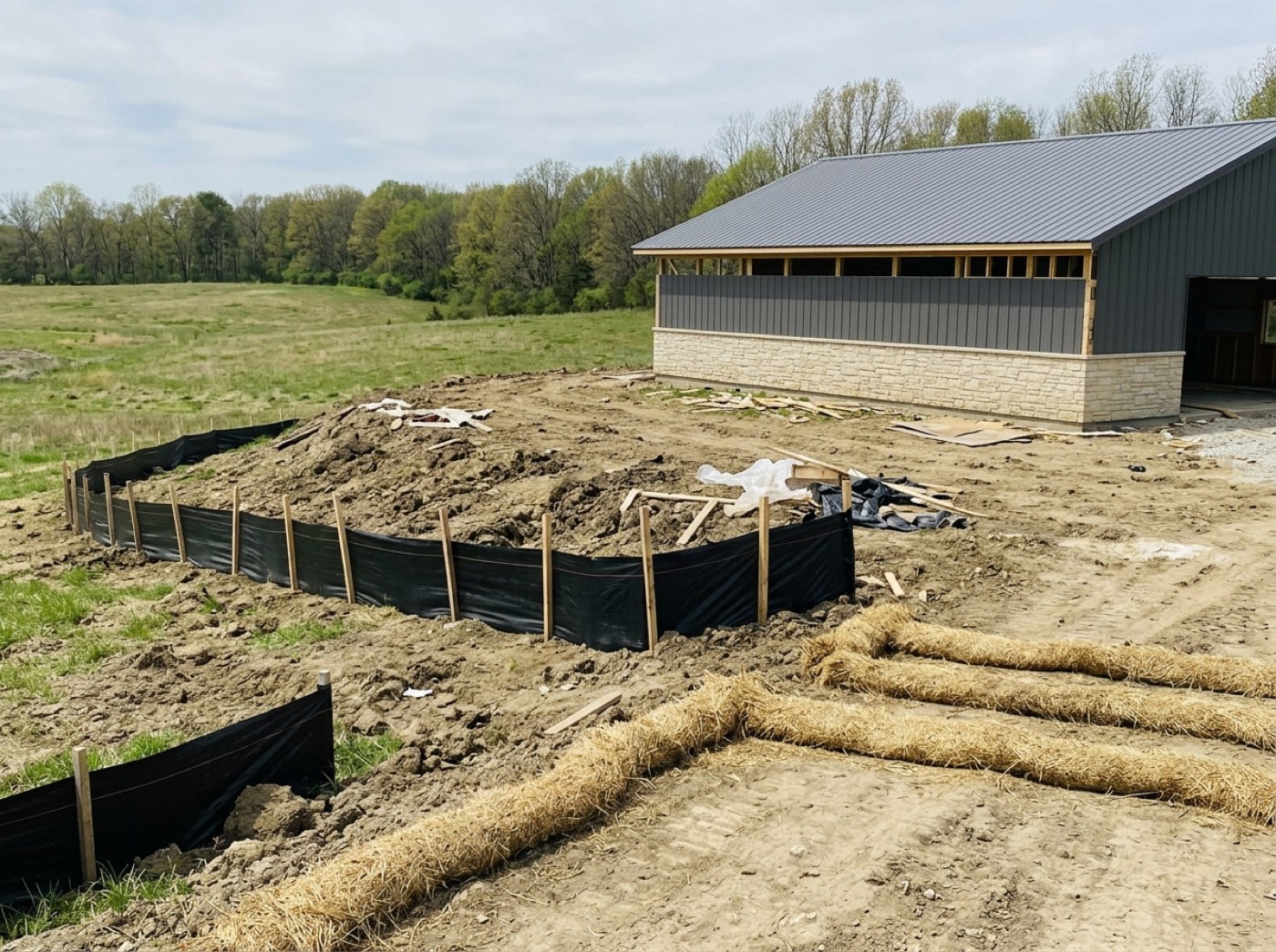
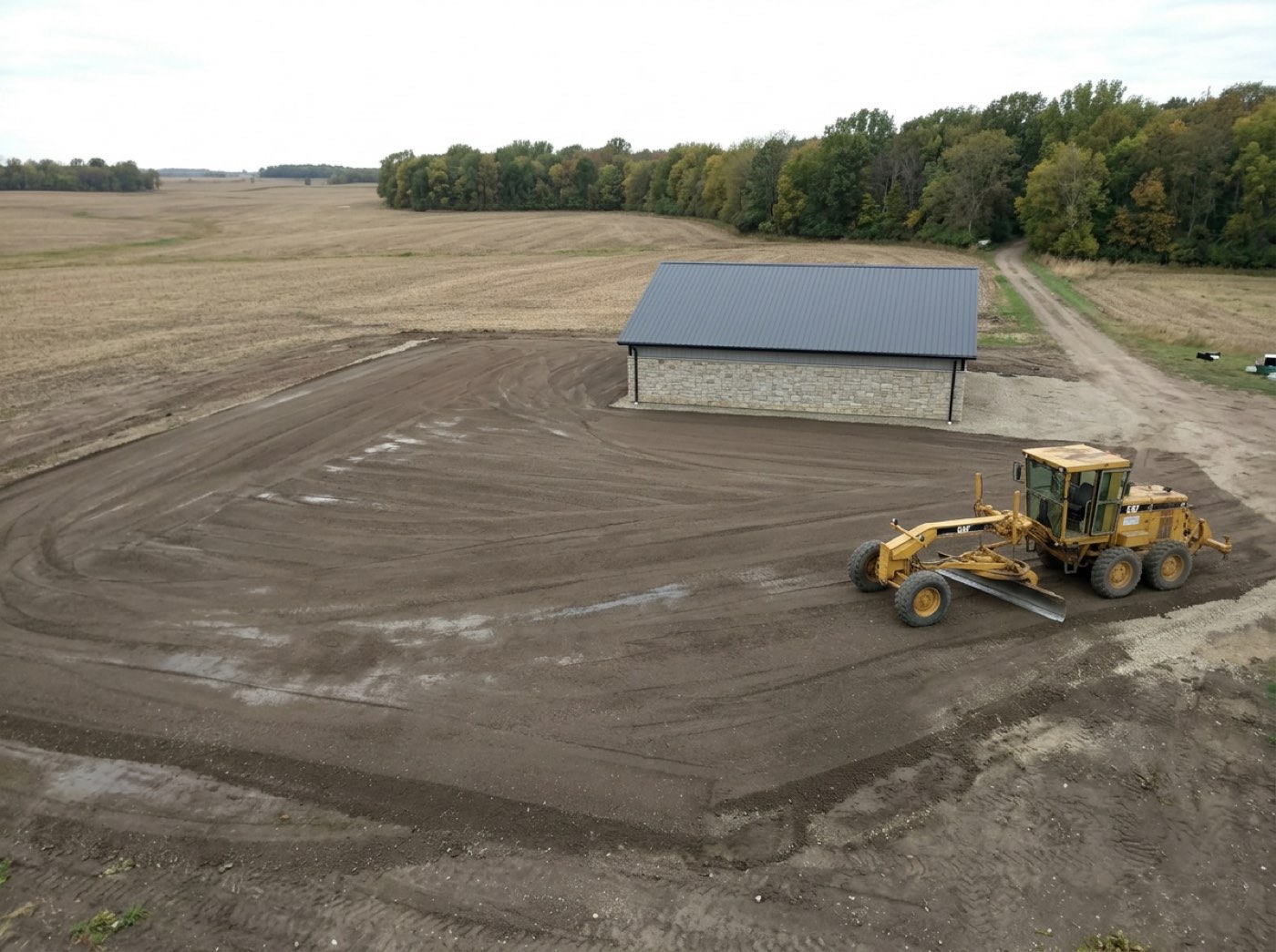
Six weeks of slippage becomes "you're behind" at the final walkthrough, with nothing on record to show the first three of them were the permit office.
The customer hears the permit office cost us three weeks with a record behind it, not an excuse. The cause comes off a fixed list rather than a free-text box, so a season's delays add up into something you can count.
What the customer is seeing right now
One button and you are looking at their page as they see it — no guessing about what you have exposed, and no discovering it during a phone call.
You spend a call describing a screen you cannot see, and find out afterwards they were looking at something else entirely.
You stop describing a screen you can't see while the customer is on the phone. It opens the real customer page rather than a preview, so what you read is exactly what they read — including anything you did not mean to publish.
…and the notes everybody can see
One stream per job — calls, site notes, decisions — so what was agreed on the phone in week two is findable in week nine. Closed, the Notes card shows how many there are and the latest line.
The colour change agreed on the phone in week two is remembered three different ways by week nine, and the crew went with a fourth.
Anyone on the job can find what was agreed, not just the person who took the call. Notes written anywhere — the job, a stage, the card, the estimate — land in one stream tagged with where they came from.
- 1Open the job from the board, or from anywhere it is named
- 2The header names the building, every crew on it and how many have accepted, and the customer
- 3Every section is a card you open and close, with its key facts on the closed card as tags
- 4Open all or Close all at the top — the window remembers which cards you keep open
- 5Budget & margin shows budget, committed, actual and projected cost per phase, and the margin the job is heading for
- 6Labor & costs holds the crew payout and the hours; Billing holds invoices and change orders
- 7Project chat is the job's own conversation with the crew
- 8See what the customer sees, one click from the header
Running a build means holding six things in your head at once, and every tool that splits them across six screens makes you the integration layer. You end up with the schedule in one place, the money in another, the crew's messages on your own phone, and the answer to is this job actually making money nowhere at all. One screen per job is not a convenience. It is the difference between noticing a job is going wrong in week two and finding out at the final invoice. And a window with fifteen sections only works if you don't have to open fifteen sections — so each one puts what matters on the outside.
- Job information scattered across separate tools
- Cost overruns discovered at the final invoice
- No single view of a job's health
- Guessing at what the customer can see
- Job conversations lost in personal text threads
- Crew confirmations chased by phone
Change one stage's dates
Open a stage and change its start, its end or its length on its own. Change End Date keeps the start and adjusts the length. Set Duration keeps the start and pushes the end out, counted in working days. Nothing else on the job moves.
Move the whole job's start date
Change the job's start and every stage moves with it by the same number of days. The screen says so before you pick: it names how long the job is and states that the end date moves too. To finish sooner, you shorten a stage instead.
Two ways to change the end date
Shift Entire Timeline keeps the job the same length and moves the start with it. Adjust Final Stage keeps the start where it is and lengthens or shortens the last stage. The line above the picker changes with the choice.
Who's on this job
A list of your team on each job, with add and remove. Being on the job outranks the company-wide notification settings — the people you put here hear about it whatever the general preferences say.
Add, reorder and remove phases
The phase list on the job screen. Each row carries a drag grip, a colour bar, the stage name, its dates and length, and its checkpoint count. A line above the list says plainly: drag the grip on the left of any stage to reorder the build.
Notes on a stage
Write as many notes as you want per stage, with proper formatting. Each one is filed under the job's actual customer and labelled with the job and the stage. Editable and deletable, with a confirmation.
Link an estimate to a job
A searchable picker of your live estimates. Choose one and the job is paired to it. The screen tells you which surfaces will catch up, and that it happens within seconds.
Links that open the right job
Every notification opens the job it refers to. A crew lead's acceptance email opens straight into signing, rather than into a hunt through a list. The link fires once — a refresh or a reshare does not set it off again.
The customer's view stays in step
The full list of phases is pushed to the customer's page on every schedule change — adding a phase, reordering, shifting the start, changing the end, editing a stage, putting the stages back in order, or changing a status. Their page only refreshes when something they could actually see has changed.