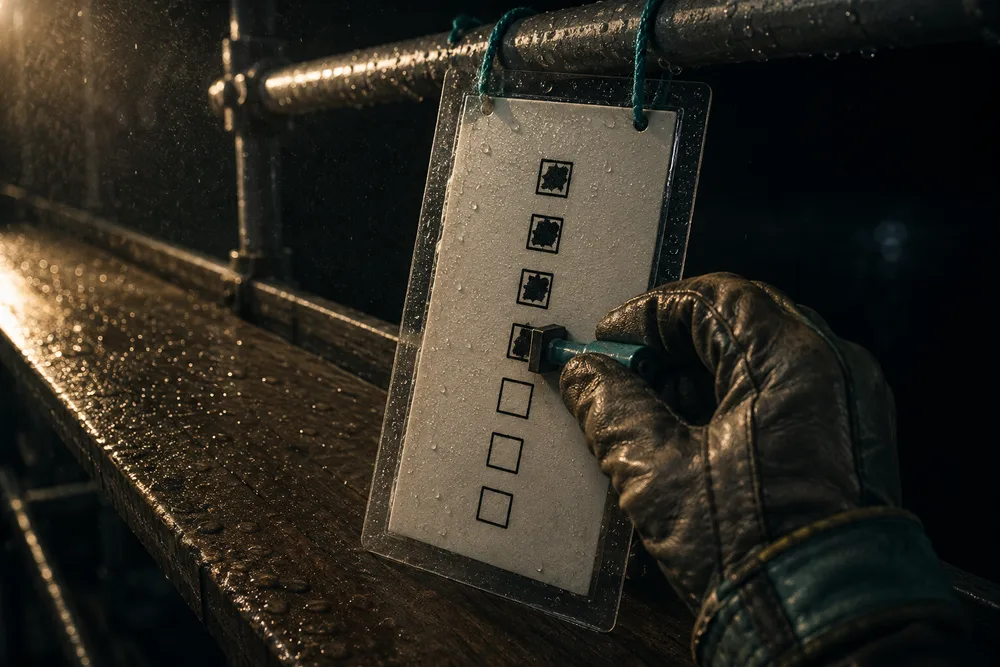
A link, nothing to install. No account to create, no password to reset. It shows the checklist for the stage the man is clocked into, on the jobs he has accepted. A tick from the field runs down the same path as one from the desk, and finishing the last one sends the customer the same email. Ticking is one-way — undoing it stays in the office. We build for post-frame crews and nobody else — no plumbers, no remodelers — so the list is the job's own stages, and a concrete crew sees only its pour.
Also called: crew app · field checklist · mark it done on site · no login for crew
The crew opens a link. Nothing to install, no password.
Each man gets a link by text and email that opens his field app — no account to create, no password to reset, nothing to install. That is the whole difference between a crew that reports progress and a crew that does not. The link itself, and the rest of the day sitting on it, is the crew field portal; this page is about the boxes.
The crew lead stands in a finished building, rings the office so somebody else can tick the box, and that call happens on Friday if it happens at all.
Men who swing a hammer for a living won't make another account, so they don't have to. The link is the key, matched against the same crew roster the Team page uses, which means every man on the crew can tick — not just the few with logins.
Nobody picks the job. The clock already said which one.
The phone never sends a project or a stage. The tick lands on the stage the man is clocked into, worked out on the server from his open shift on the punch clock. Tap before clocking in and it answers "Clock in first, so we know which job."
Two builds on the go with the same six stage names on both, and Tuesday's slab gets ticked off against the wrong building.
A man on his second job of the day can't tick the first job's list by mistake. Because the stage comes from his open shift rather than from anything the phone says, wrong-job ticks — honest or otherwise — simply can't happen.
Only the men going on the job get its list
Try itOn an in-house crew the office ticks who's going from the project header. Each man gets his field link by text and email and taps Accept job, and the job — with its checklist — reaches his phone once he has accepted his place on it. The header keeps count: Crew A all 4 accepted · Concrete Crew 1 of 2 accepted. A subcontractor crew's lead signs the acceptance agreement instead.
Every job's checklist sits on every phone, a man on the other site ticks Tuesday's slab here by mistake, and nobody can say who was supposed to be on it.
The men actually on the job are the ones ticking it, and the office can see who hasn't said yes yet. Three men on one job and three on another each see only their own list, and Remind nudges the one who hasn't answered instead of somebody ringing round.
A concrete crew sees only the concrete stage
Set a crew to Concrete on its card on the Team page and its field app shows jobs, not stages. Each man clocks onto the job's concrete stage, whatever stage the job as a whole has reached, so his hours, photos and ticks land on the pour he is actually doing. A framing crew still sees every stage of the job.
The concrete crew opens the job, lands on Post Set because that is where the build has got to, and ticks the slab off against the framing stage.
Concrete men never need to scroll past framing, siding and the final payment to find their list, so they don't. Their ticks and hours landing on the concrete stage by themselves gives the office a clean record of the pour — and a crew paid by the job sees exactly the job it is paid for.
A box ticked in the field is the same box the office ticks
Try itThe crew's tick runs through the one function the office's schedule has always written through — not a copy of it, not a crew-shaped version of it. Where the progress was recorded is not a difference the rest of the system can see. Where the list itself comes from is stage checkpoints.
The crew app says the stage is finished, the schedule says it is not, and somebody has to open both to work out which one to believe.
The office never has to ask which screen to believe. The crew's tick runs through the exact routine the office's ticks do — board rules and customer message included — so the field and the desk can't drift apart.
Every tick is silent except the last one
Ticking is one tap with no confirmation — the office ticks these all day and so should he. The last open box is routed somewhere else: a screen that names the stage and says plainly that the office gets told and the customer sees it complete on their page.
A man clearing the list at the end of the day taps one box further than the work actually went, and the customer's phone tells them the framing is finished.
A crew lead clears a list fast all day, so only the tick that leaves the building asks him to stop. One confirmation, on the last box, keeps his thumb from learning to dismiss it — and keeps a mis-tap from telling a customer the framing is done.
The crew can say a thing is done; undoing it stays in the office
Try itThere is no untick on the phone. A box already ticked is not tappable and the screen carries no control to reverse it. If something was closed too early, the office reopens it — which clears the completion, the name against it and the parent stage, and writes a reopened entry into the log.
Someone unticks a box to fix a mis-tap, the customer watches the stage go from finished back to open on their dashboard, and rings to ask what went wrong.
The customer never watches a finished stage flip back to open because of a mis-tap. The last tick emails them and no phone can un-send that, so a mistake is a call to the office, which reopens it properly and logs it.
By default only crew leaders can mark work complete
Every man with a link can clock in, shoot photos and report a blocker. Marking work complete is crew leaders only until you say otherwise, and one switch opens it to the whole crew. Crew Leader is one of the five construction roles, so nobody has to invent a new one for this.
The newest man on the crew closes the stage on his second day, and the customer gets a completion email for work that has another day left in it.
The owner decides who can finish a stage, because finishing one emails the customer and moves the board. Crew leaders hold it by default and one switch opens it to the whole crew; a man without it gets no checklist at all rather than a greyed-out one he might think he used.
The field list shows exactly what the office list shows
The crew screen reads the same rows the schedule reads, so the two lists cannot argue. A checkpoint the office marked not applicable shows struck through, with "Not needed on this job" under it, and will not take a tap — and it stops counting: the stage finishes when every applicable box is ticked, not every box. Striking one for a single job is done in stage checkpoints.
The office decides this job takes no gutters, the crew's list still shows Gutters unticked, and the stage sits open for a week waiting on work nobody is going to do.
A man told on Monday to skip the wainscot can see the office agrees, so he doesn't ring in to ask. Not-applicable rows show struck through rather than vanishing, and they stop counting, so the stage still finishes when the work that applies is done.
The last tick is what tells the customer
When his last box closes the stage, the customer's progress update leaves on its own and their project page moves. Nobody at a desk relays it. Exactly what leaves, and who else it reaches, is the stage-complete send.
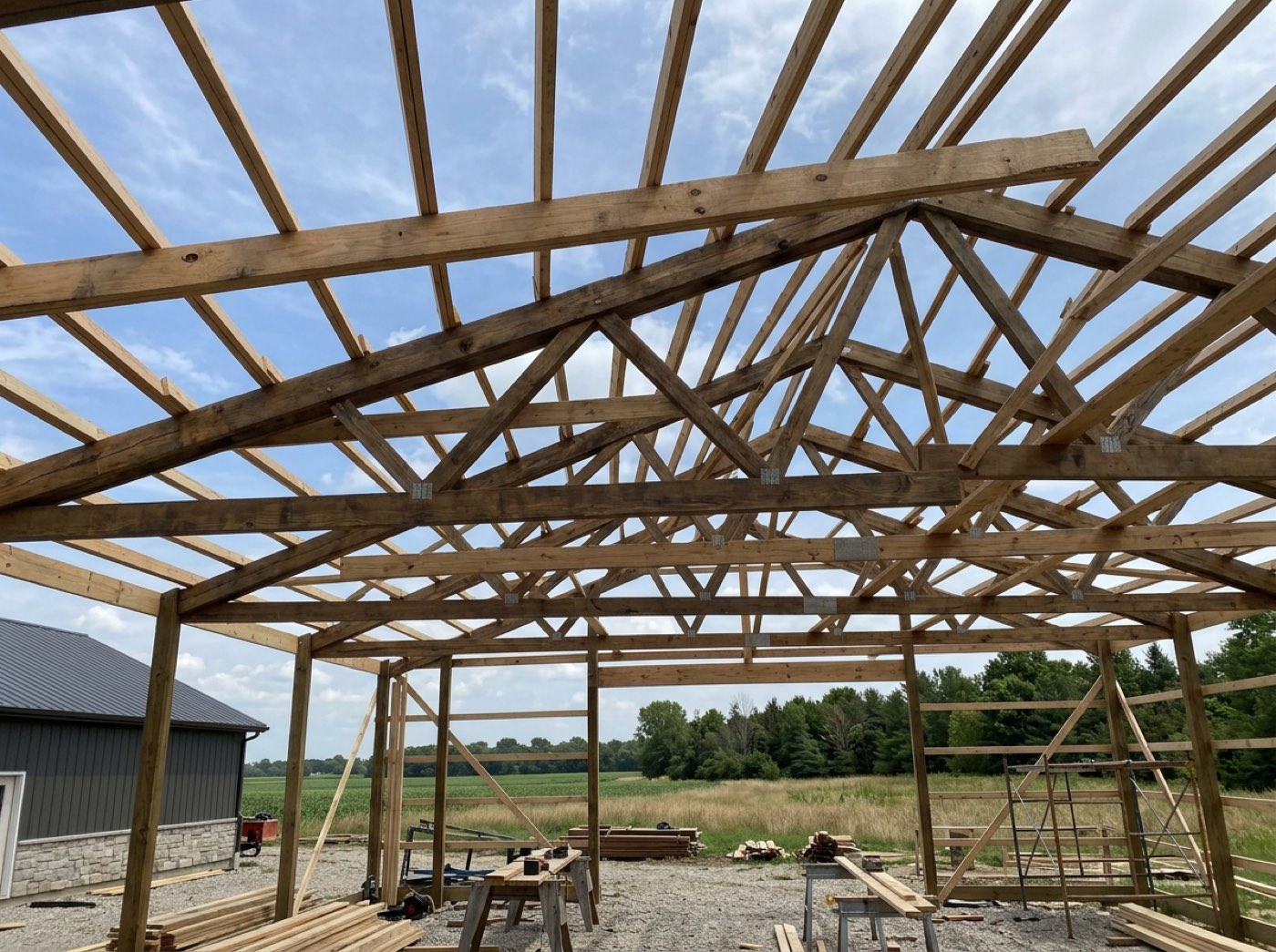
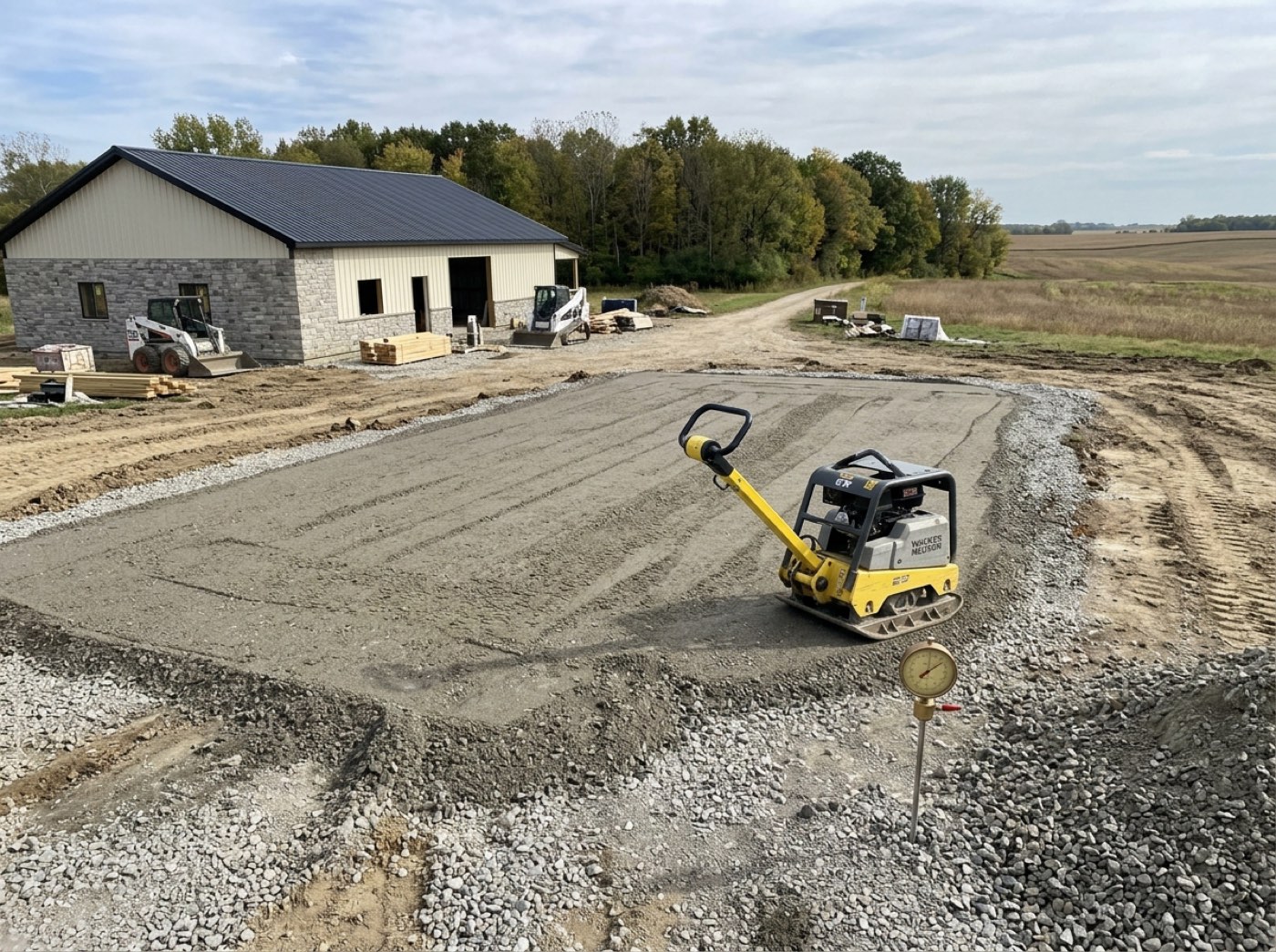
The customer hears on Friday about work that finished on Tuesday, and rings twice in between to ask how it is going.
The customer hears on the day the work finished, not on Friday. The update hangs off the completion itself rather than off someone remembering to pass it on — which is why ticks only go forward and leaders hold them by default.
Two taps on a bad connection is still one message
A phone with one bar gets tapped twice. The send is claimed in the database — the first caller to see the completion owns it, and everyone after gets a duplicate and stays quiet. The button for a checklist-less stage is guarded the same way, inside the update itself.
The crew lead taps, sees nothing happen on a dead bar of signal, taps again, and the customer gets two identical framing-complete emails ninety seconds apart.
A crew lead on one bar of signal can tap twice without embarrassing you. The send is claimed in one central place, so the first tap owns it and the second stays quiet — and if that check ever fails it sends anyway, because a missing update costs more than a doubled one.
A tick in the middle of a stage is a different message from the last one
A box ticked mid-stage can send the customer a checkpoint update; the box that finishes the stage sends the stage-complete one instead. Never both for one tap — and both are switches you own in the customer message list.
Six boxes on a stage becomes six near-identical progress emails in one afternoon, and the customer stops opening any of them.
The customer gets one clear message per moment instead of six near-copies in an afternoon. Each tick is judged against what was saved before it, and the stage-complete message owns the final tick outright, so nobody gets a small update and a big one about the same box.
Ticking Order Placed from a field moves the job on the board
Try itEvery checkpoint save re-runs the project rules. The first build box ticked moves the job into Build, the last one on the final build stage moves it to Wrap-Up, and Order Placed stamps the ordered badge — even when the order was phoned in from the yard. It fires the same from a phone as from a desk, on the project board.
The material arrived on Wednesday, the board still reads "Order not sent", and the office rings the supplier to chase an order that has already been delivered.
The office stops chasing a supplier for an order that already arrived. Every save re-runs the board rules, which only ever move forward, so the crew's ordinary ticks keep the project board honest without anyone dragging cards.
The office sees it land, with a name on it
The tick appears in the build schedule where the office was going to put it anyway, recorded with who completed it and when. Nobody retypes a texted update into the plan on Friday afternoon. A checkpoint carries a name and a time, not a picture — the shots are a separate act on the same screen, covered in jobsite photos from the field.
Three crews across four jobs, and the only record of who said the slab was finished is a text on a phone that has since been wiped.
Six weeks later the owner can ask the right man about the slab, because the name on the tick is the man the link belongs to. Nothing the phone types can change it, and a leader ticking on someone's behalf is recorded as himself.
That's not on this stage any more. Pull down to refresh.
A screen left open on a truck seat goes stale. If the office edits the stage underneath him, the tick comes back with that exact sentence instead of writing to a box that no longer exists. The read side — the same items, in the same order, on the phone — is the field checklist.
The stage list gets reworked at ten in the morning, the phone has been on the seat since seven, and his afternoon of ticks goes into a version of the stage nobody is looking at.
A man whose screen sat on the truck seat all morning is told what actually happened — the office changed the stage — so he pulls to refresh instead of deciding the app is broken and going back to texting.
A stage with no checklist still has to be closable
Some phases carry no boxes at all. Those get one button — "Mark Site Cleanup done" — running the same atomic update the office runs, which by construction cannot fire twice.
The phase is Site Cleanup, it has no boxes on it, and there is no way at all to say it happened from the place where it happened.
Site Cleanup has no boxes, but the crew still finished it — so they get one button, Mark Site Cleanup done. It runs the same once-only update the office runs, so a phase with no checklist can never hold a job open forever.
- 1The crew member opens his link — no login.
- 2Once the job is accepted, he clocks in and the checklist opens on the stage he is clocked into.
- 3A concrete crew only ever sees the concrete stage; a framing crew sees the whole job.
- 4He ticks the work off as it gets done.
- 5The last tick finishes the stage and tells the customer.
- 6Items the office marked not applicable show struck through and are not tappable.
- 7Undoing a tick stays in the office.
A crew lead standing in a finished building had to phone the office and have somebody else tick the box — and that call happened at the end of the week, if it happened at all, so customers heard about Tuesday's work on Friday. A crew ticking the last box now means exactly what the office ticking it means, down to which email the customer receives. Ticking is one-way because completing a stage messages the customer, and a phone screen that could quietly reverse that would be lying about what has already been sent.
- Field progress not reaching the office until later
- Crew apps that behave differently from the office view
- A field mistake un-sending a customer message
Who on the crew may mark work complete
One switch, closed to start with. It decides whether every crew member or only crew leaders may close work from a crew link. Anyone can read it, so a man who cannot tick a box is told why instead of tapping something that does nothing.